
Something’s not working
Find what you see below. The checks under it go from the most likely to the least. Most problems show up first in Check my storeThe full check that everything on your store is set up right, without leaving the builder. Its button is in step 1 of the Setup guide when OptionKit hasn’t loaded on your site yet.: on the builderThe OptionKit web page where you create your options and see a live preview. It has two tabs: Options, where you build, and Setup, with the Setup guide for putting OptionKit on your store.’s Setup tab, it runs by itself after Publish or Update, and Check now in a step runs it at once. What it finds shows in the step it belongs to, or as a row of its own in the Setup guide.
Updated October 2026 · Squarespace 7.1
My options don’t show on the product page
- Does the Options tab show a warning sign? Something needs fixing before your store can be updated. Point at the sign to read what, like 1 issue: “Engraving” isn’t on any products yet; select it, or Show me, to go to the first one. Selecting Publish or Update also opens the first problem. The bar says where you are, like Problem 1 of 3, with Previous and Next to go through them.
- Is your store updated? Changes in the builder reach your store only when you select PublishThe builder button that puts your options on your store the first time. It’s step 4 of the Setup guide and the top bar’s button, greyed out until steps 1 to 3 are done. the first time, then UpdateThe builder button that puts your latest options on your store, after your first Publish. It’s grayed out when your store is already up to date.. If Update in the top bar isn’t grayed out, select it and wait a minute.
- Is your site code on your site? Look at step 1 of the Setup guide. If it says Paste it in Squarespace and save, then come back here., paste it again: Add OptionKit with Code Injection. If Setup’s finished panel shows No recent activity instead of Live (point at it for the time): it means no page of your store has loaded in the last day. That’s normal for a quiet store. Select Check store under it. If it still says No recent activity, your site code may have been taken out: paste it back at the end of the Footer box, save, and select Check store again.
- Is the product in the group of options? Under the group’s name, Change opens Show these options on: Products I choose, Products with a tag, Products in a category or All products. Check the product, its tag or its category is picked there.
- Is your site Squarespace 7.1? OptionKit works on 7.1 only, and stays off on 7.0. The site checker tells you which yours is.
- Is your subscription running? On your own domain, OptionKit follows its trial or subscription. When it has ended, products that need a choice can’t be ordered until you subscribe; the rest sell without options. Your setup is kept for 90 days. The builder says so at the top. See Billing and your subscription.
- Is it switched off for this page? An address ending in
?optionkit=offshows the page without OptionKit. Remove that part.
On a very slow connection the options can take a few seconds to appear; Add To Cart waits for them, so the plain product isn’t added by mistake.
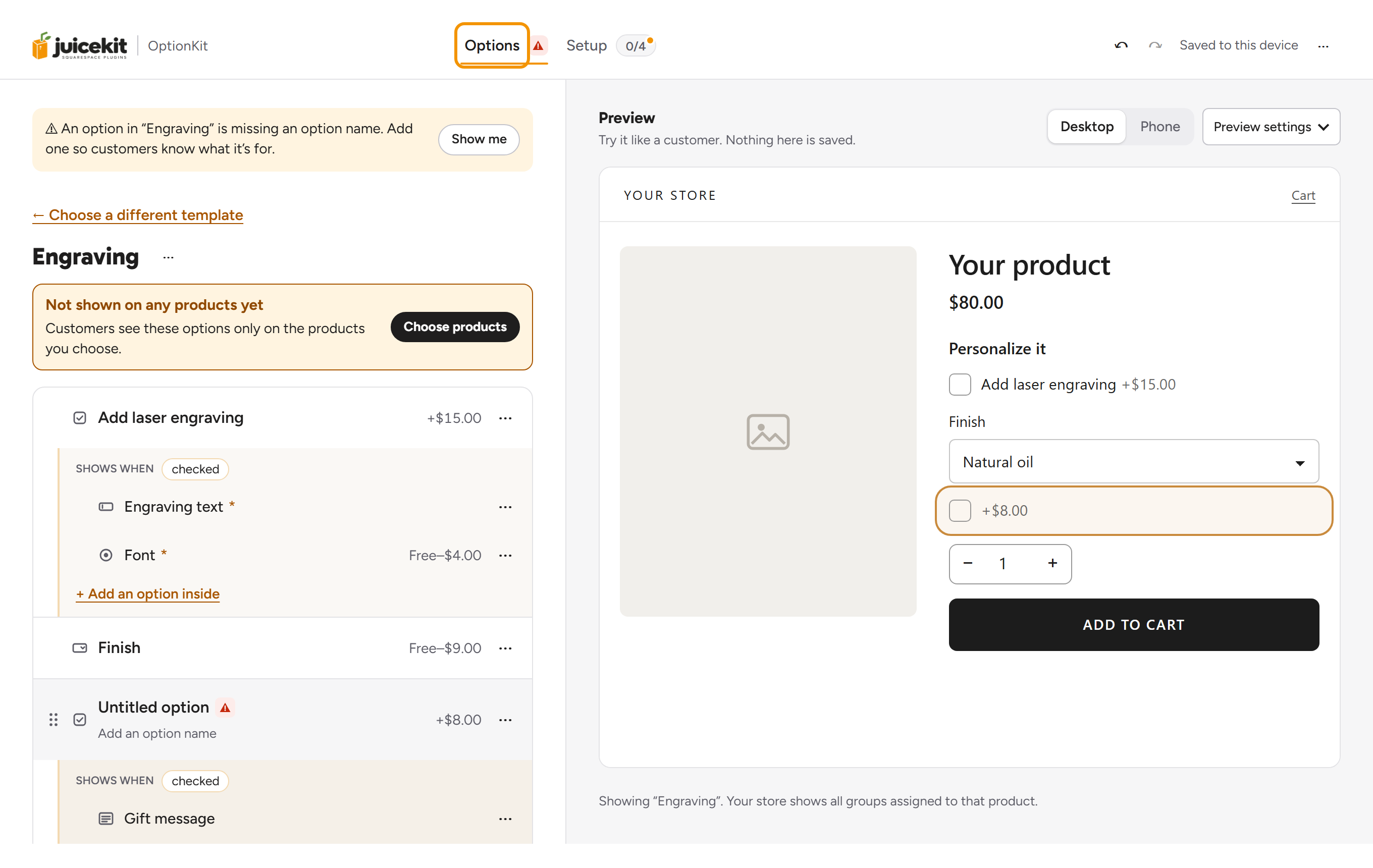
The option’s price isn’t added in the cart
- Is its product there? Each paid option is a product in SquarespaceThe product that charges a paid option, like “Laser engraving, $15”, on your Add-ons page. OptionKit adds it to the cart when a customer picks that option.. In Setup’s step 3, Activate your options, View all lists any that aren’t in your store yet. Connected with Squarespace? Under Create automatically, select Create to add them. Set up manually? Import them with Download import file. Both are in Activate your options.
- Is the price the same in Squarespace? View all marks a product whose price differs from the builder’s with ! Price doesn’t match and asks which is right.
- Is the product visible? A product that’s hidden or switched off in Squarespace can’t go in a cart, so the option shows as Unavailable instead.
What the customer typed isn’t on the order
- Does the Personalization product have the details form? The customer’s choices are saved through a form on the Personalization productOne product, on your Add-ons page, that costs $0. It carries what the customer typed or chose, so it shows up on the order.. Open it in Squarespace and check Forms › Add to Cart Form shows OptionKit details connected. In Setup’s step 3, the last part, Add a form to Personalization, says where it stands, with Show me how. See the details form.
- Does the form have one Text Area field? The form needs one Text Area (older dashboards: Paragraph) field, and no other required fields.
- Look at the order, not the cart email. In Commerce › Orders, each item shows the customer’s choices and its item codeA short code, like “Item: MANGO-42”, that OptionKit gives each personalized item. Its Personalization line lists the paid options it was charged for, under “Charged separately”, so you can see which paid options belong to which item., like Item: MANGO-42. Its Personalization line lists the paid options it was charged for.
An option says Unavailable
Its product in Squarespace can’t be read. That happens when:
- the Add-ons pageA store page in Squarespace that holds the products for your paid options, at yourstore.com/add-ons (its URL Slug is add-ons). It isn’t in your menu, so customers don’t browse it. is disabled or has a password,
- the product is hidden or switched off in Squarespace, or
- the product is sold out. The products for your paid options should have their stock set to Unlimited.
Fix that and refresh the page. Customers can’t add an unavailable option, so they’re never charged too little. A product that couldn’t be read once is read again after two seconds; still failing, the option says Unavailable and one line under the options says “Some options couldn’t load. · Try again”.
OptionKit shows on some products but not others
- Which group of options is the product in? Each group shows on the products, tags or categories it names. A product added to your store later needs the tag or category, or picking in the group.
- Is it a product page? Options show on the product’s own page. A quick view or a product block on another page sends customers to the product page when options are needed.
- Is it one of your paid options’ products? Groups for every product skip it. To show options on it, choose it, its tag or its category in a group.
The cart looks wrong
- Is your site code on the cart page? It must be in the whole site’s Footer, not one page’s own Code Injection. Without it the cart isn’t checked, and paid options show as ordinary lines a customer can remove. Check my store says so.
- Read the note above the cart. When something in the cart doesn’t match what was chosen, OptionKit puts it right or says what to do, like “Add another Walnut Board, +$80.00”. A note that holds checkout has a warning sign, a light red tint and a stronger edge, and its first fix is a filled button.
- A paid option says “(on its own line)”? That’s fine. Its price is on its own line further down the cart. One line can cover the same paid option for several items, so the price isn’t repeated under each item.
- Is Skip cart page off? With it on, customers skip the cart and its check. See Turn off Skip cart page.
- Is another plugin changing the cart? Open the cart with
?optionkit=offat the end of its address, likeyourstore.com/cart?optionkit=off. It shows the cart the way Squarespace does. If it still looks wrong, the problem isn’t OptionKit’s.
Check my store doesn’t hear back
This only happens when the check runs in a tab: a private site, or an older install code on the page. Otherwise the check reads your store from the builder and says what it found. After about 15 seconds the builder says Your store didn’t answer. Most often the code isn’t saved in Footer yet. with Open step 1. Other reasons under it lists the rest:
- Your site is private? In your store’s tab, log in to Squarespace or type the site password when it asks. Then press Check my store again.
- Replace an older OptionKit install code with your site code.
- Paste the report from your store instead, with ⋯ › Paste a report from my store….
After Publish or Update the check runs by itself. When it can’t (a private site, no answer), it tries once more a minute later; still nothing, the Setup guide says Couldn’t check just now. · Check now.
More in What Check my store looks at.
The builder shows a message
- “Couldn’t connect. Check your internet and try again.” The builder couldn’t reach OptionKit over the internet. Your work is saved in the builder, so nothing is lost while you try again.
- “Something went wrong on our side. Try again in a minute.” The problem is ours. Try again in a minute. If it keeps happening, use ⋯ › Contact us (or Email us in the message), and we’ll look into it.
- “This tab is read-only”: the builder is open in another tab too. Make your changes there, or select Edit here instead to edit in this tab.
- “Gift box” couldn’t be changed in Squarespace, so your store wasn’t updated. with Try again and Cancel: Squarespace refused a price change, so nothing was published. Try again finishes it. If the whole request fails: We couldn’t reach Squarespace, so your store wasn’t updated., and prices it changed go back. If Squarespace no longer accepts the connection: Squarespace no longer accepts OptionKit’s connection, so your store wasn’t updated. with Reconnect, and no Update goes out until you reconnect.
What the Setup guide says
Each part of a step says where it stands in a box: grey with a small spinner while OptionKit is looking, green once found, orange when something is to fix. The steps check themselves when you come back to the builder from Squarespace, and Check now checks at once. A finished part folds to one row; ▾ opens it again.
Step 1, Add OptionKit to your site
- Looking for OptionKit on your site…, with Paste it in Squarespace and save, then come back here. · Check now under it: your site hasn’t loaded your site code yet. Paste it at the end of the Footer box, save, and come back.
- Not showing up? Check your store to see why. with Check my store: OptionKit still hasn’t loaded after a couple of minutes. Check my store looks at everything on your store and says what it finds.
- ✓ On yourstore.com · checked just now, with Wrong store? beside it: done. Wrong store? opens Is this a different store?
- No activity on yourstore.com since Oct 23, 12:00 AM in a grey box: your store hasn’t loaded OptionKit in the last day. The step stays done. The panel at the top of Setup says No recent activity: check that your site code is still in Footer, then select Check store.
- The site code on yourstore.com is for another OptionKit setup. A check found a different setup’s site code in Code Injection, so step 1 is to do again. Copy your site code from the step, paste it in Footer in place of the other one, select Save, then select Check now.
Step 2, Choose your products
- The badge ⚠ Not on any product yet beside Choose products: that group shows on no product. The step lists each group, like “Engraving: 3 products”.
- Add an option first. with Open Options: the setup has no options yet.
Step 3, Activate your options
- Looking for your Add-ons page…, with When you’ve created it, come back here. · Check now: no Add-ons page found yet. When something’s wrong, one line says what to fix: “No page at /add-ons yet. Check its URL Slug says add-ons.”, “Your site is password protected. Select Check my store, then enter the site password in the new tab.”, “The page at /add-ons asks for a password. Remove the password in the page’s settings, or select Check my store and enter it in the new tab.” or “The page at /add-ons isn’t a store page. Make it with Sell › Products.”
- “Finish on Squarespace’s screen. It opened in a new window, and this updates by itself when you’re done.”: the Squarespace window is still open. Your site isn’t in Squarespace’s list? That window lists the sites you can reach with the Squarespace login you’re using there. Log in as the owner of your site, or set up manually with the import file. Connected it before? Your site is at the end of Squarespace’s list, under “Select your site to re-authorize”.
- Create your Add-ons page above, then refresh this list.: there’s no store page to put the products on yet.
- “Looking for “Personalization” in your store…” or the products’ names, with When you’ve imported it, come back here. · Check now: the imported products aren’t found yet. When all are in your store but some need a fix, the part says “All 6 are in your store, so there’s nothing to import again. Fix these two in Squarespace:” and lists each problem with its fix: “Sold out. Set its stock to Unlimited in Products ↗.”, “Which price do you want to use?” with Squarespace $10.00 and OptionKit $12.00 as the answers, “It needs the OptionKit details form.” with Show me how, “Open your site while logged in to Squarespace, then select Check now.” for a page with a password, and ““Gift box” is in Squarespace without its “Gold” choice. Press Update to add it.” for a choice added after the product.
- “Looking for the form on “Personalization”…”, with When you’ve added it, come back here. · Check now: the form isn’t found yet. Found, the part folds to ✓ Form added.
- A red line at the top of the guide that ends with Open step 3: “Personalization” isn’t ready in Squarespace. Open step 3 opens the step.
Step 4, Publish
- Publish is greyed out, with Finish step 3 first, then publish. under it: finish the step it names. The step’s name is a link to it.
- ⚠ Update before setup is finished? with “Some paid options aren’t in Squarespace yet. Customers will see them as Unavailable.”, Go to step 3 and Update anyway: you selected Update while step 3 is unfinished, say a new paid option isn’t in Squarespace yet.
- Couldn’t check just now. · Check now: the check after an update couldn’t run, on a private site or with no answer. It tried once more a minute later. Select Check now.
Good to know
Each item’s details on the order list the customer’s answers, then the product they are for, then what is charged on a line of its own, like “Engraving text: EMMA | For: Walnut Board — Large | Charged separately: Laser engraving $15.00 · Gift wrap $4.00 | Charged: Laser engraving · Gift wrap | Item: MANGO-42”. Orders placed before October 12, 2026 read “Paid options: Laser engraving +$15.00” instead. If an order is ever missing a paid option’s own line, you can see what was due. When JuiceKit can’t be reached on the cart page and the browser has nothing saved, the cart waits while it tries again for about 15 seconds, then shows a short note and lets checkout go ahead.
Squarespace’s checkout page has a Remove on every line and runs no outside code, so OptionKit can’t check it. When a customer comes back to the cart, OptionKit puts back an item’s paid options and its Personalization line, and takes out paid options whose product was removed. A customer who removes a line on the checkout page and pays from there isn’t stopped. The order’s Charged separately list says what each option should have cost, so compare it with the order’s lines before you make the item. With Connect with Squarespace, the order check does this for you: it emails you Order #01042 on yourstore.com needs a look before you fulfill it when part of a personalized item is missing. The switch Email me about incomplete orders is in Settings › Squarespace. A store connected before the order check selects Connect again there once.
A few customers use a browser or an extension that blocks scripts. They see your product without the options, and they can buy it plain. When your site code runs but OptionKit’s own file is blocked, Add To Cart says “The options couldn’t load. Please try again.” instead of adding the plain product. If an item can’t be sold without its personalization, add a short line to the product description, like “Made to order: if you don’t see the engraving options here, email us before you buy”, or add a Squarespace product form of your own to that product as a fallback.
Once a day, OptionKit looks at a connected store it has seen before and emails you when something needs you, at most once a day and once per cause until it clears: “OptionKit hasn’t loaded on yourstore.com in 3 days.”, “Customers on yourstore.com couldn’t add personalized items today.” or ““Laser engraving” can’t be read on your Add-ons page.” Each email says the one thing to do and has Open the builder.
Tags and categories can be in any language, and capitals don’t matter: “Gravur”, “гравировка” and “彫刻” are each a tag of their own, and “gravur” is the same tag as “Gravur”.
Get the report from your store
The report lists what OptionKit sees on a page of your store: the version, your setup, each paid option’s product, and the outcome of recent adds to the cart. It never includes what customers typed. Email it to us and we can usually tell what’s wrong at once.
- Open the page where you see the problem, like a product page, while logged in to Squarespace. The report shows only to you; anyone else sees one line, “OptionKit is on this page.”
- In the address bar at the top of your browser, select the very end of the address and type
?optionkit=diagnose, then press Enter. For example,yourstore.com/shop/p/walnut-boardbecomesyourstore.com/shop/p/walnut-board?optionkit=diagnose. - If the address already has a question mark in it, type an ampersand (&) instead of the question mark:
yourstore.com/shop?category=boardsbecomesyourstore.com/shop?category=boards&optionkit=diagnose. - Select Copy report and paste it into an email to hello@getjuicekit.com.
If no report appears with ?optionkit=diagnose, try ?juicekit=diagnose the same way. That one is answered by your site code itself, so it can tell you something when OptionKit isn’t running on the page. If nothing appears with either, your site code isn’t on that page: see where to paste it.
In the email, add your store ID too. It’s in the builder, in Settings › Advanced, under Store ID (for support). Contact us in the builder’s ⋯ menu sends it with your report for you.