
Charging for options
Every option can be free or add to the price. You choose how under Price, in the option’s settings in the builderThe OptionKit web page where you create your options and see a live preview. It has two tabs: Options, where you build, and Setup, with the Setup guide for putting OptionKit on your store.. Customers see what each option adds right after its name, like “Add laser engraving +$15.00”, and a summary with the total under the options.
Updated October 2026 · Squarespace 7.1
For text, the How it’s priced dropdown has Free, Fixed price, Price per letter and A set price plus a price per letter. For a quantity, the choices are Free, Price for each and Fixed price. A checkbox is Free or Fixed price. A file upload can have a Price per file. In the list of your options, each row shows its price in short, like “+$0.50 per letter”, or “Free–$4.00” when some choices are free.
Prices show in your store’s currency. Check my storeThe full check that everything on your store is set up right, without leaving the builder. Its button is in step 1 of the Setup guide when OptionKit hasn’t loaded on your site yet. finds it. Until then, pick it in Settings › Your store’s currency.
A fixed price
Fixed price adds the same amount whenever the option is used: a checkbox that’s checked, or a text box with something in it. You type it in Price.
Type prices like 12, 12.50 or 1,000 (or 1.234,50 where your store writes a comma before the cents). 0 means Free, so no product is needed. If what you typed isn’t a price, the box stays red, the price stays what it was, and Update waits until it’s fixed.
Gift wrap at $5.00: checking it adds $5.00.
Per letter, per character or per word
For text, Price per letter charges for each letter typed. What counts says what counts:
- Letters: every character but the spaces counts.
- Letters and spaces: spaces count too. The price then reads Per character.
- Words: each word counts once, however long. The price then reads Per word.
Check Make the first few letters free to include some, and type how many in the sentence under it: “First 10 letters free, then $0.50 per letter.”
Engraving at $1.00 per letter: “EMMA” adds $4.00. With the first 3 letters free, “EMMA” adds $1.00.
A set price plus per letter
A set price plus a price per letter charges a set price that includes some letters, then a price for each extra letter. You type the set price in Set price. To include some letters in it, check Include the first few letters in the set price. The builder says it as one sentence, like “$10.00 includes 5 letters, then $1.00 per extra letter.” Customers see it as one price too: “+$10.00 plus $1.00 per letter after the first 5”. Without free letters it reads like “+$10.00 plus $2.00 per letter”.
Cake lettering at $10.00 including 5 letters, then $1.00 per extra letter: “HAPPY BIRTHDAY” has 13 letters (spaces are free), so it adds $10.00 + 8 × $1.00 = $18.00.
A price for each choice
For a choice (buttons, swatches, a list or a dropdown), each choice has a price box beside it. Leave it empty and that choice is free. There’s no switch to turn on.
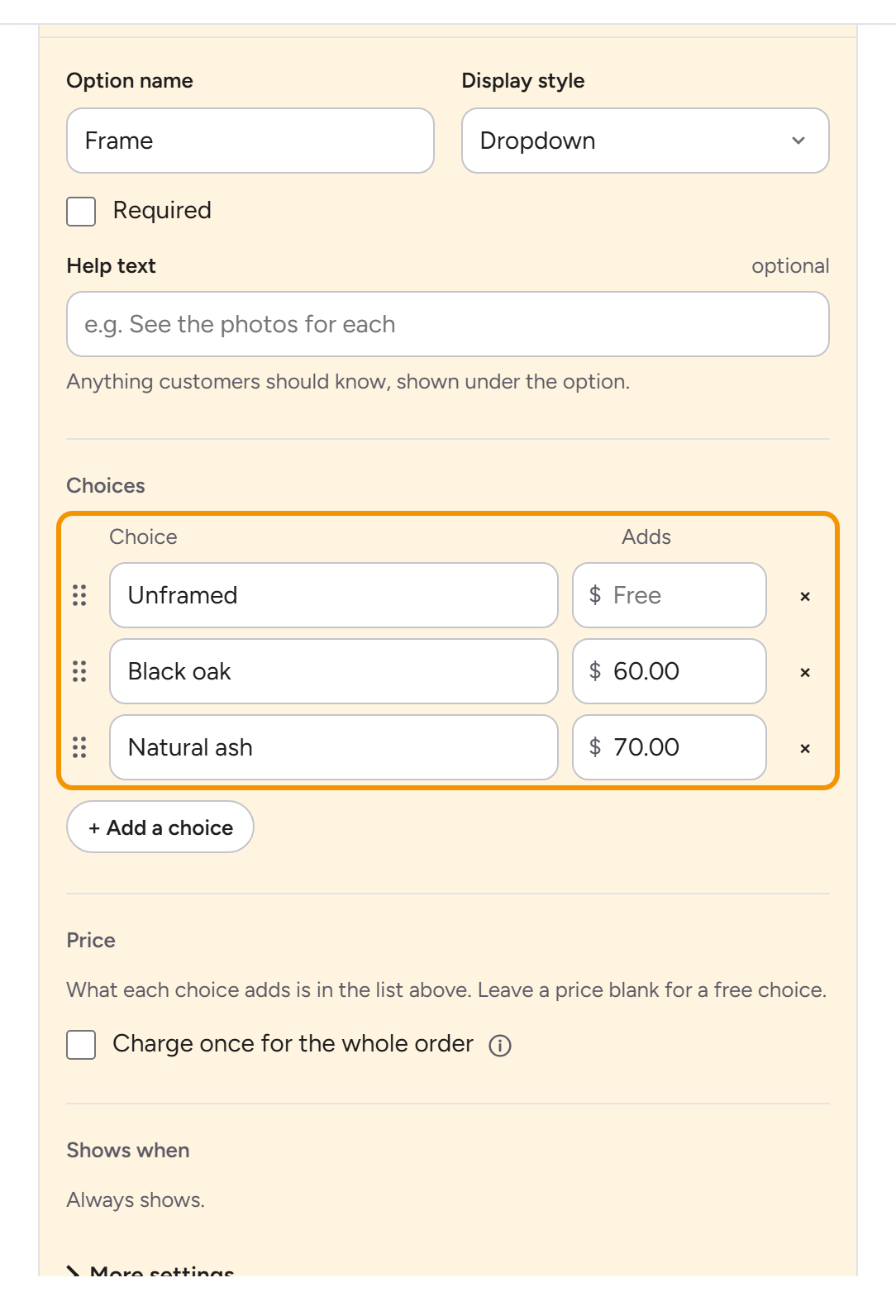
Font: Serif and Script are free, Block caps adds $3.00.
A price for each number
For a quantity, Price for each multiplies by the number entered. You can make the first few free here too.
Extra candles at $0.75 each: 4 candles add $3.00.
Once per order
Normally an option is charged for each item: 3 boards with engraving at $15.00 are 3 × $15.00. Check Charge once for the whole order to charge it once, however many items the customer buys. It suits a setup fee or a rush fee. With a set price plus a price per letter, it reads Charge the set price once for the whole order, and only the set price is charged once. For a choice, it’s right under the list of choices, and it shows once a choice has a price.
A logo setup fee of $20.00, charged once: 3 boards with the logo add $20.00, not $60.00.
Customers see it in the summary under the options: “Options: +$10.00, plus $20.00 once per order”.
How the price is charged
Squarespace can only charge for products. So each price is a product in SquarespaceThe product that charges a paid option, like “Laser engraving, $15”, on your Add-ons page. OptionKit adds it to the cart when a customer picks that option., like “Engraving, $15”. When a customer picks engraving, OptionKit puts that product in the cart with the item, and Squarespace charges for both at your normal checkout.
The builder’s Setup guide, in step 3, Activate your options, gives you one import file with every product your paid options need, and View all lists each one. Activate your options shows how. Connected with Squarespace? Change the price in OptionKit and select Update. With Update prices in Squarespace on, in Settings › Squarespace, OptionKit changes it in Squarespace too. Set up manually? Change the price in OptionKit and in Squarespace, then select Update. The check tells you if they don’t match: under the price field the builder asks Which price do you want to use?, with Squarespace $7.00 and OptionKit $6.00.
Questions
Can two options share one price?
Yes. In the option’s price, you can pick a product another paid option already uses. Changing its price then changes it for both, and the builder says so next to the price.
What do numbers and punctuation count as?
With What counts set to Letters, every character except spaces counts, numbers and punctuation included. “Est. 2025” counts as 8. Characters nobody can see, like the zero-width spaces some apps copy along with a name, don’t count and aren’t charged. A text longer than its limit says so while it’s typed, like “Engraving text: 24 characters at most. You have 41.”, and its price stops at the limit.
Do discount codes apply to options?
The products for your paid options are normal Squarespace products, so a discount that applies to the whole order applies to them too. A discount for one product applies only to that product.